
Skillet on every device.
Four Android apps for the register, the kitchen, the office and your team. Install in about a minute per device. iPhone and iPad coming soon, and Skillet works in any browser today.
- Android Version 1.3.0
- iPhone & iPad Coming soon
- Any browser app.skillethq.com
Choose the app for each device
One app per job. Install the right one on each tablet or phone. On a computer? Scan the code with the tablet's camera to download it there.
-
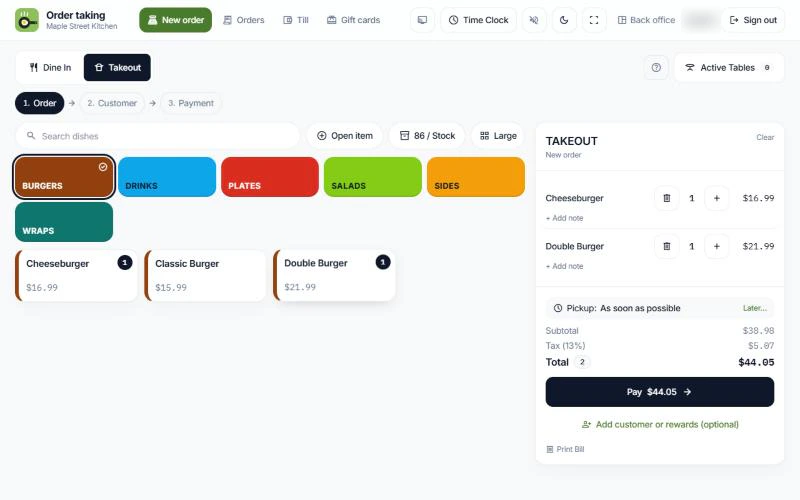

Skillet POS
The register
Take orders at the counter or the table, split bills, take payments and run the till. Keeps the screen on during service.
-
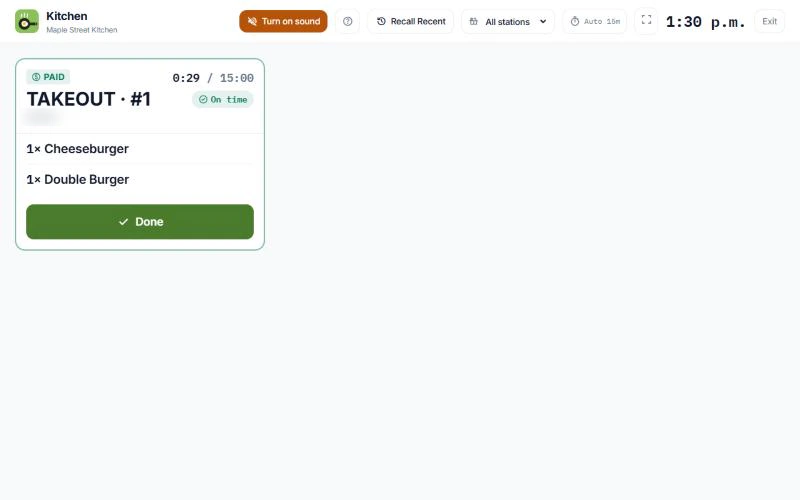
Skillet Kitchen
The kitchen display
Tickets by station with timers, build lists and new-ticket sounds, on any Android tablet. Keeps the screen on.
-
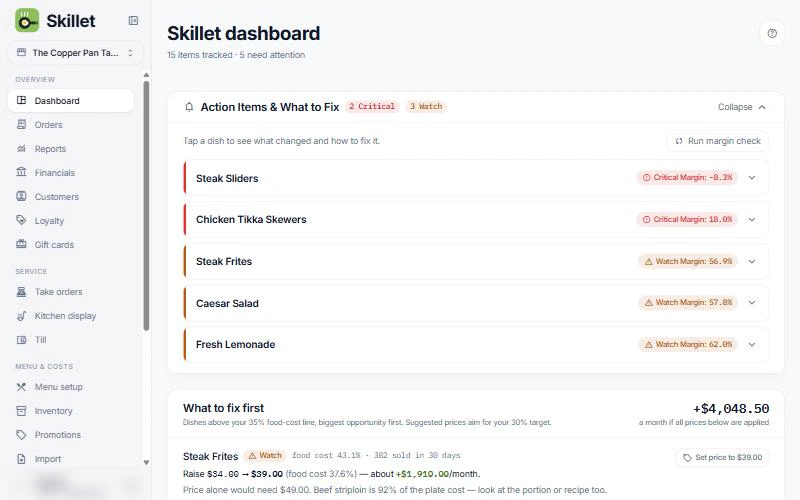
Skillet Manager
The back office
Menu, costing, profit, reports, alerts and settings, on your phone or tablet.
- Schedule · this weekPublish to staffMonTueWedThuFriSatSun AmiraKitchen 7–37–37–37–310–6 JonFront 11–711–74–114–1111–7 PriyaManager 9–59–59–59–59–5 LuisKitchen 3–113–113–113–1110–6Time clock: PIN + photoTimesheets as CSV
Skillet Team
Your staff
Each person's schedule and the PIN-and-photo time clock.
How to install on Android
About a minute per device. Until the apps are on Google Play, you install them from this page, which is why Android asks a couple of extra questions.
-
Step 1
Download
On the tablet or phone, open this page in Chrome and tap Download for Android. Chrome may say the file type can harm your device: tap Download anyway. Every Skillet app is signed by Skillet.
-
Step 2
Open the file
When the download finishes, tap Open (or find it in Files → Downloads).
-
Step 3
Allow installs from Chrome
The first time, Android asks for permission to install apps from Chrome. Tap Settings, turn on Allow from this source, then go back.
-
Step 4
Install
Tap Install. If Google Play Protect asks to scan the app, let it, then tap Install. It takes a few seconds.
-
Step 5
Sign in and set it up
Open Skillet, sign in with your owner email once, and choose Set up this device: register, kitchen screen, kiosk or customer display. After that, staff sign in with their PIN.
Screens differ a little between Android versions and brands. The words to look for are the same.
On an iPad or iPhone
There is no app to download yet. Skillet runs full screen from the Home Screen, and works like an app.
- Open Skillet in Safari.Go to app.skillethq.com and sign in.
- Tap Share.The square with an arrow, at the top or bottom of Safari.
- Tap Add to Home Screen.Scroll down in the Share menu. Keep the name Skillet.
- Tap Add.Open Skillet from the new icon. It opens without the browser bar.
If something gets in the way
The usual fixes. Still stuck? Contact us and we'll walk you through it.
No app needed to start
Skillet runs in any modern browser on tablets, phones and computers. Open app.skillethq.com and use Add to Home screen (Android) or Share → Add to Home Screen (iPhone and iPad).
It says "App not installed".
An older test version of Skillet is probably on the device. Uninstall it (press and hold the Skillet icon, then Uninstall), then install again. Also check the device has free storage space.
Google Play Protect blocked the app.
Apps installed from a website rather than Google Play are sometimes flagged until they are listed on Google Play. Tap More details, then Install anyway. Skillet apps are signed by Skillet; only download them from skillethq.com.
Where did the download go?
Open the Files app (or My Files on Samsung) and look in Downloads. The file is named like skillet-pos-1.3.0.apk.
How do I update to a new version?
Most improvements reach the apps on their own, because the apps load Skillet from the web. When a new app version is posted here, download it and install it over the old one. Your sign-in and settings stay.
The device is managed by work or school and blocks installs.
Some managed tablets don't allow installs from outside Google Play. Use Skillet in Chrome instead (app.skillethq.com, then Add to Home screen), or ask whoever manages the device.
Which Android version do I need?
Android 7.0 or newer, with an up-to-date Chrome. Most restaurants use Android tablets of 10 to 11 inches; see the hardware guide.
See what your dishes really make.
Try Skillet free for 30 days, or book a walkthrough with someone who has run restaurants.
Plans from $89 CAD per location, per month. No per-device fees.