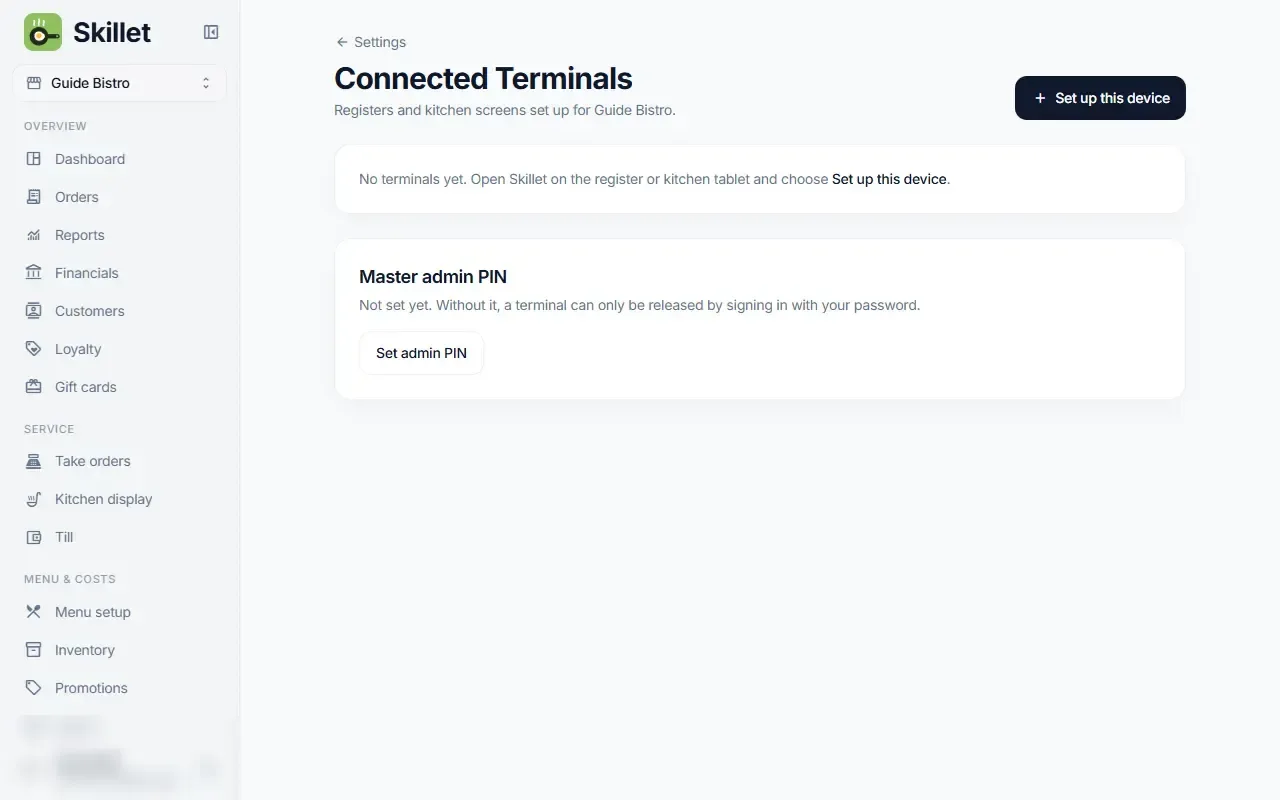
- On the tablet, open Skillet (the Android app or a browser), sign in as the owner and choose Set up this device.
- Pick what it’s for: register, kitchen screen, self-order kiosk or customer display, and give it a name.
- The tablet now shows only that screen. Staff sign in with their PIN and are signed out after a while without use.
- To leave terminal mode, enter your 6-digit admin PIN (set it in Settings → Your account).
See every device and sign any of them out from Settings → Terminals. There are no per-device fees, so add as many as you need.